Want to truly see how your machine vibrates in action? The 3D Operating Deflection Shape (ODS) simulation in Digivibe MX® brings vibration dynamics to life. Here’s how to unlock it:
Assign a 3D model to a desired machine in the Digivibe MX® database
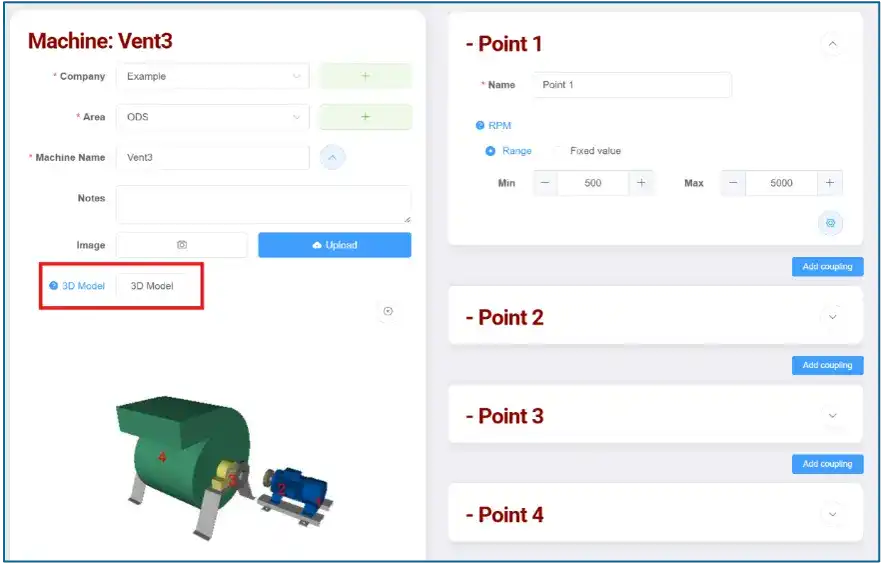
- Stock 3D Model can be selected from small library of common machine types with pre-defined data collection points included in the Digivibe MX® software.
- Custom 3D models files created in Solidworks or similar 3D modeling software can be imported to the Digivibe MX® software in .3ds, .xaml and .obj file formats.
- Once imported, custom 3D Models can then have data collection points assigned in the Digivibe MX® 3D ODS tool.
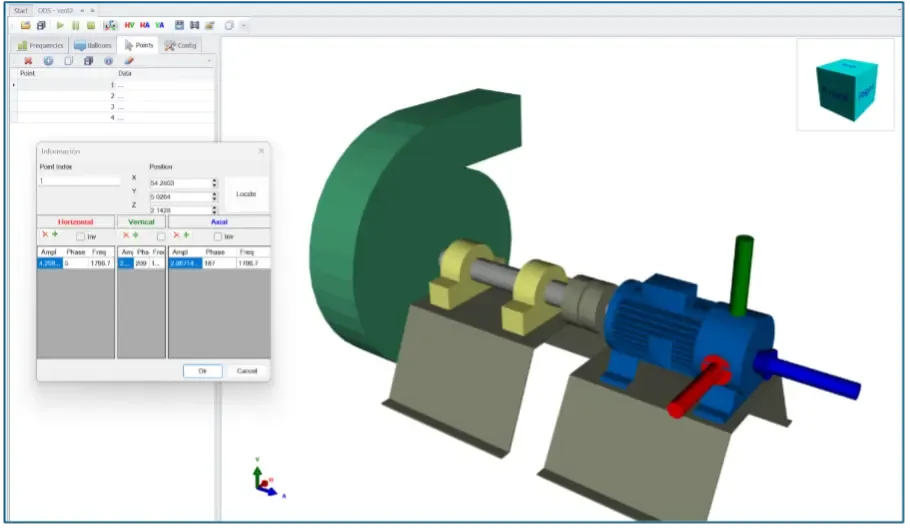
Collect ODS-compatible data for application to the 3D Model
1. Collect ODS data with two independent single-axis accelerometers, or with a triaxial accelerometer + single-axis reference accelerometer
- The primary data collection accelerometer (single axis on Channel 1, or triaxial on Channels 1, 2, and 3) collects the assigned data points. The other accelerometer remains attached to a fixed stationary reference point. The vibration at the data points will be modeled relative to the data from this fixed stationary reference point.
- Enable the reference channel data collection by clicking “R” in the Routes window.
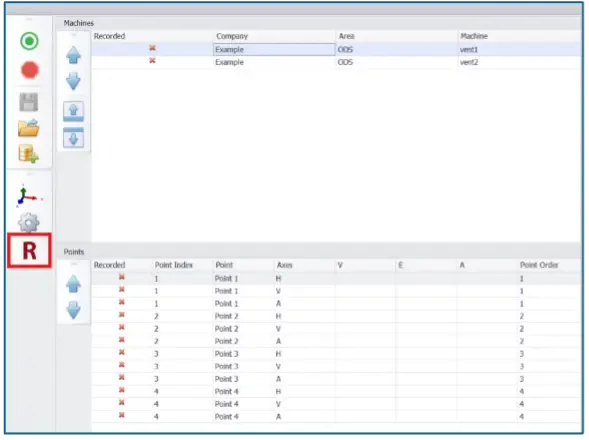
2. Run the Route & Launch the Simulation
- Collect all axis directions for all assigned points, with corresponding reference data.
Update the database with the new data, select your machine, and select the 3D function from the Digivibe MX® dashboard.
3. Play, Analyze & Export
- Select a date of collection with ODS-compatible data and the desired frequency to model.
- Press the Play button to animate machine deflection based on that date’s collected data.
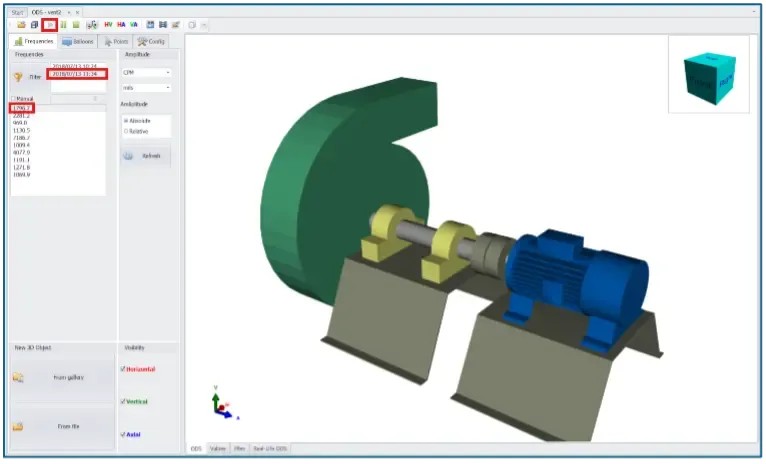
- Tweak speed and amplitude in Settings to get your perfect view.
- Export your moving ODS Model as a GIF or static image–great for sharing insight or documentation.
Why we love it
- Delivers intuitive visual confirmation of vibration activity and weak points.
- Simplifies vibration event explanations for both technical and non-technical stakeholders.
- Boosts confidence in diagnosis and corrective actions.
Pro Tip: Always double-check your measurement direction consistency before simulating. If needed, use the Points menu to invert any misaligned data collection directions before hitting Play.
Need help Setting up a 3D ODS Simulation?
or tailoring dashboards to your machines? Reach out anytime—we’re here to make monitoring intuitive.